
XL Online

Online tuition on Zoom 
Zoom offers an excellent video or audio connection between the learner and tutor, with the additional capabilities of screen sharing, file sharing and a whiteboard space where both can interact. Here’s a couple of hints to get the ball rolling and make your sessions as effective as possible:
Getting prepared
- Firstly, download zoom onto a suitable device at home
- Zoom works on any laptop, desktop, tablet or smartphone
- We would suggest a laptop or good quality tablet (if you’re interested – the best combination is to have zoom on a laptop (with a good webcam and microphone) PLUS an iPad with Apple pencil as well for screen sharing)
- Check your internet connection and speed
- You should ideally have a speed of above 8 Mbps down and 1.5Mbps up to seamlessly run a video call – however it can work with less, just not as smooth.
- If you are battling with your connection – one simple hint is to sit as close to the router as possible, or chat with your service provider.
Connecting to my lesson
- We will send you a zoom invitation (on email and/or WhatsApp) which will have the day and time, as well as the meeting code and password.
- This is effectively an invitation to a secure virtual meeting room, and please be assured that all our lessons are centrally arranged and monitored.
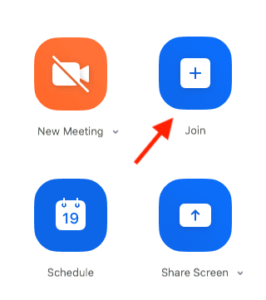
- Then at the booked time, on your device at home, open the zoom application and you can click on the “Join” button (see below).
- Then you can type in the meeting code and password and you will be connected.
- Your tutor will then talk you through anything else you need to know.
We will be in touch with you each individually to send you more details about your lesson bookings and any other info you may need. Looking forward to continuing to offer you our best support – online!
For more info and FAQ’s – please see below.
XL Videos on YouTube 
As many of you know, we have over 100 XL videos on YouTube already. These is geared mostly towards Grade 11 & 12 at this time. However, we will be putting together playlists on our channel of recommended resources for other grades as well. We will be using specific videos as part of our tuition support depending which sections each learner is covering, please feel free to browse and discover.
Online Learning on Siyavula 
The central element to our approach at XL is practise, practise, practise. Siyavula provides an excellent online platform for inuitive, responsive practise that works incredibly well with coaching and instruction. We have arranged for each learner at XL to be able to create themselves a profile which will link through to us directly, and enable our tutors to support learners with the work they do. All costs are covered by ourselves for the remainder of the year so there is no need to make any payment.
To find out how to sign up and create yourself a profile on Siyavula, please click here.
More Info
Downloading and Using Zoom
Zoom is a third-party application that works on Windows, Mac and all smart phones. To download zoom you can either follow the prompt on the email invitation we send you; download it from your app store or you can go directly to the zoom website.
For tutorials on how to use zoom please click here.
Connecting at Home
The benefit is that you’ll be able to tap into some of the XL awesome that you’re used to, from the comfort of your home. In order to do that, we need to make sure you’re getting the most out of your internet connection.
- If you’re using wi-fi, try to sit as close to your router as possible so you get the best connection.
- You may have a repeater installed in your house – a device that takes the signal from your wi-fi router and sends it out again. The repeater might get a weak signal from the router, even though you’re getting a strong signal from the repeater. Try to sit close to your router rather than a repeater.
- Thanks to the internet, being at home is not as boring as it used to be. If you’re experiencing slow connectivity, it might be because everyone in the house is using the internet at the same time. You might have to ask a member of your household to watch Netflix or YouTube videos after your lesson… just ask nicely!
If you’re unsure about your internet speed, just type “Internet Speed Test” into Google. Look for the run speed test button and click on it. If you’re below 5mbps, we might have to adapt.
Making the Most of Working at Home
If you’re a science student, you might have heard of inertia. For humans, inertia means that if we sit on the couch and watch TV for 5 days, it’s really hard to suddenly have a productive day 6. With this in mind, it’s going to be easiest for you to keep the engine running! Dedicate some time to getting work done every day.
Luckily XL is around to help you out with that – we’ll be getting your additional practise to you via e-mail. It’s going to work best if you attempt the worksheets before you connect with your tutor. This way, the whole lesson can be spent working on concepts you might need help with. You might also be doing schoolwork at home – your tutor can help you with those concepts that are a bit harder to learn from home.
Laptop or Cellphone?
You can use either your laptop or your cellphone to connect with your
tutor on Zoom. There are going to be advantages and disadvantages to the use of
either. We recommend that you use your cellphone if it has a front and rear
camera. This way you can switch between cameras to show your tutor the work
that is in front of you. You can even minimize the Zoom app, take a picture of
your work, and then use the “share a file” functionality to screenshare that
picture. Nifty!
If you prefer to use your laptop, no problem. Just be aware that you might have
to hold your notepad up to the webcam every now and then to show your tutor the
work you’ve done.
Scheduling Your Lesson
We’ll schedule the best time to have your lesson the same way we’ve always done our scheduling. All you’ve got to do is hop onto Zoom and enter the meeting code to join the stream at the start of your lesson. Your tutor is going to get the meeting code to you via e-mail or Whatsapp. Easy as that.